
Modding
I like most PC gamers absolutely love modding the shit out of my games. I specifically pay Nexus Mods to be able to download mods quicker because of it.
However, there is no official Linux client yet for Vortex Mod Manager. But Bazzite has some neat tools, I should be able to get it to work right?
Step 1: Installing Vortex
The installation was actually pretty easy after doing some research. The BEST way to install it is through the app called "Lutris" which is included with Bazzite. This will play a key role in proper deployment.
Using Lutris
Using Lutris allows you to install windows applications and games super easily using WINE and or Proton. Below is the the method of installation that worked for me:
- Launch Lutris
- Click the "+" button on the top left
- Search for "Vortex Mod Manger" in the top option.
- Follow the steps and use the default settings
I have found that this is also an extremely old version of Vortex that appears to be no longer maintained and makes you disable updates. This method is the easier way to do it, but I have a much better way.
Manually Installing via Lutris.
- Download the Vortex Mod Manager from Nexus Mods site
- Click the "+" button in Lutris
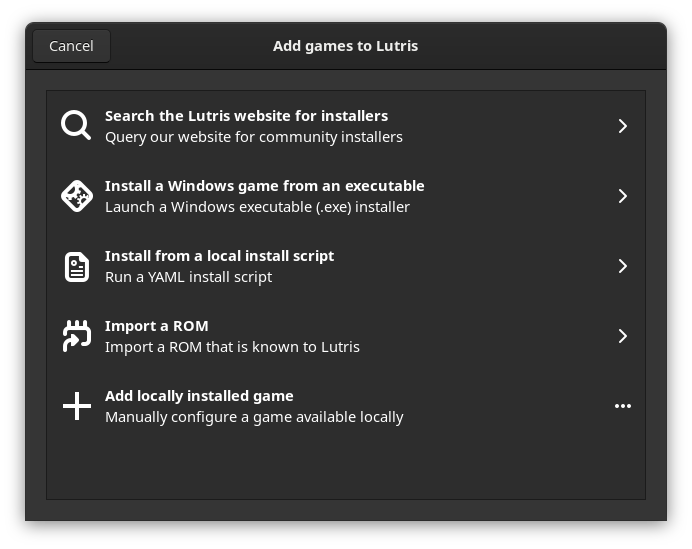
- Click "Install a Windows game from an executable"
- Enter the name, and follow the prompts on screen. Recommended to create Steam Shortcut & Application Menu shortcut
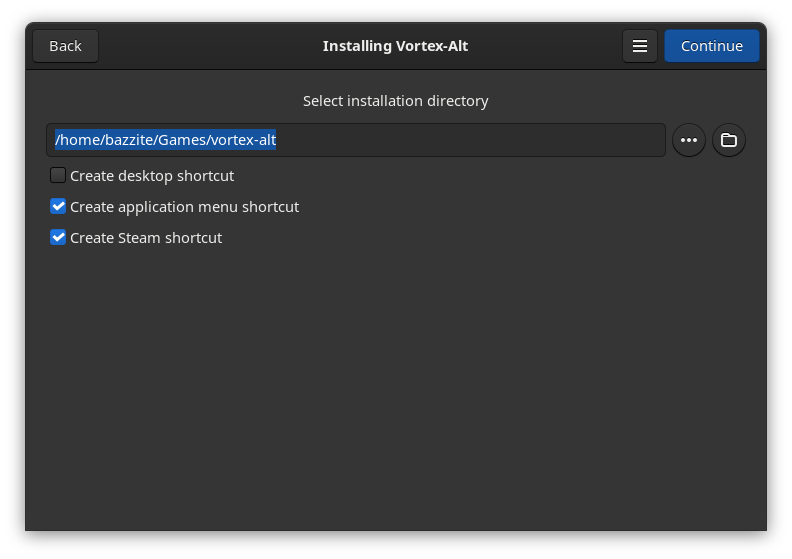
- I've named my vortex-alt since I have the other version of vortex installed. You can call yours "Vortex"
- Keep pushing next until you get it installed!
Now Vortex will launch automatically by default. You will need to close it after the first launch for Lutris to "finish installing". After this feel free to launch Vortex again and boom! You should be ready to rock and roll for the next steps.
Step 2: Configuring Wine and Vortex
This is the part that got me stumped and frankly, took me too long to figure out as there isn't much online specifically about this issue. Many just do something else. In hind site, I should have done something else.
The primary issue I had after install Vortex was getting it to "view" the directory where my games where installed. Because Steam default installation on the primary drive is in the `.local` directory in your home, Wine by default has "hidden directories" disabled. Of course there is no bloody way to manually specify a path.
When opening up Vortex and selecting a game to install, you get this menu. By default, the "Z:" folder is the root of your entire system.
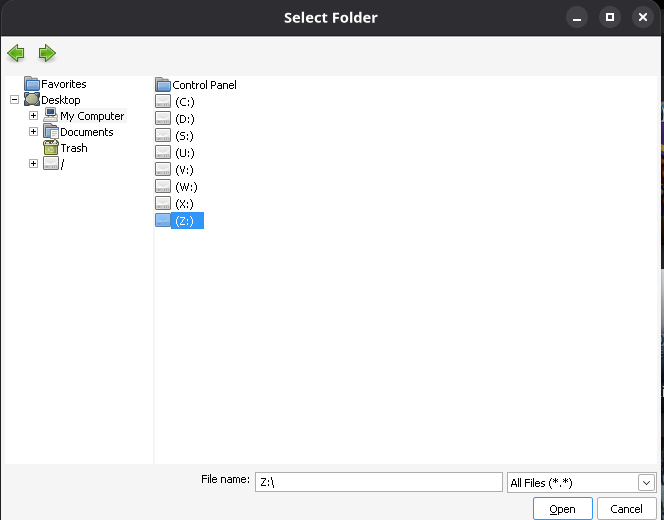
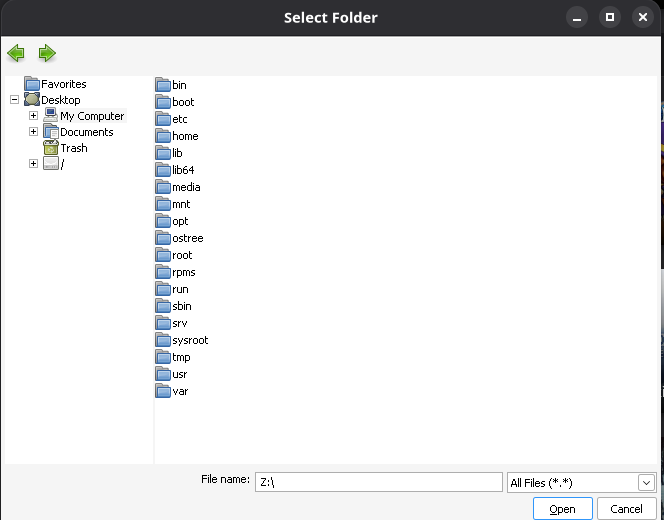
Alright not a problem, my game is installed on this drive. I know its installed under `/home/glenn/.local...`
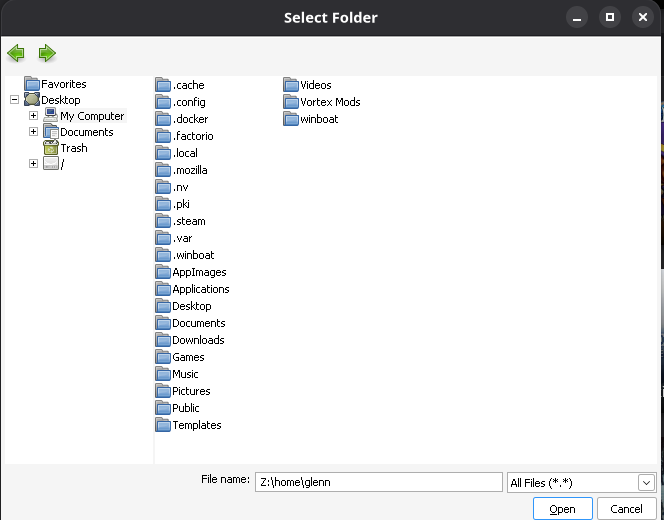
The issue is, all the folders starting with "." don't show. The screenshot above is AFTER I made the configuration change. From here I can select `.local/share/Steam/steamapps/common` and there is all my games.
In order to get this fucking shit to work, you need to enable this in the WineConfig which I will explain now.
- Close Vortex if you have it open
- Open Lutris
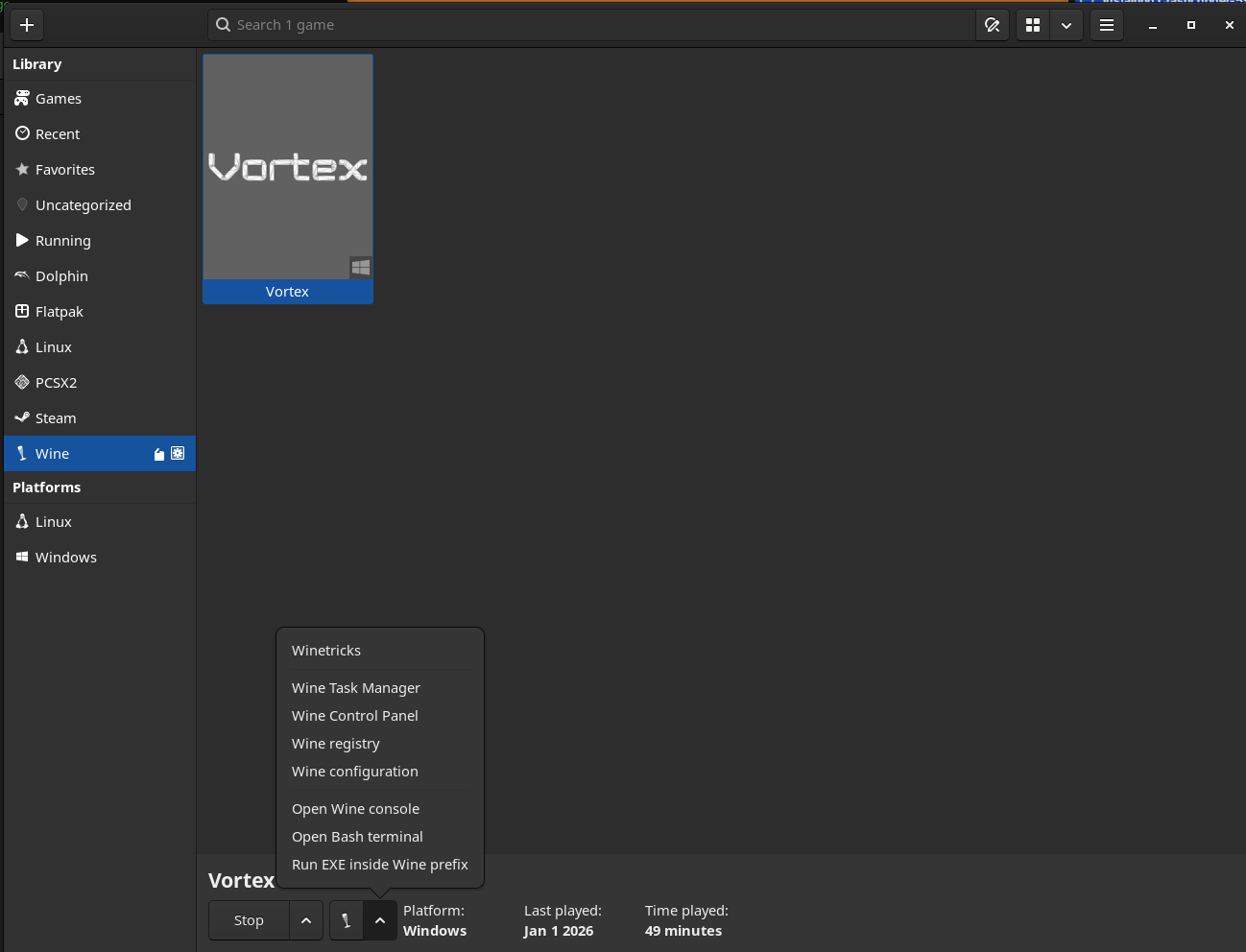
- Find Vortex within Lutris (usually under "wine")
- Click on it to open the menu
- Click the wine button down the bottom left side, then open "Wine Configuration"
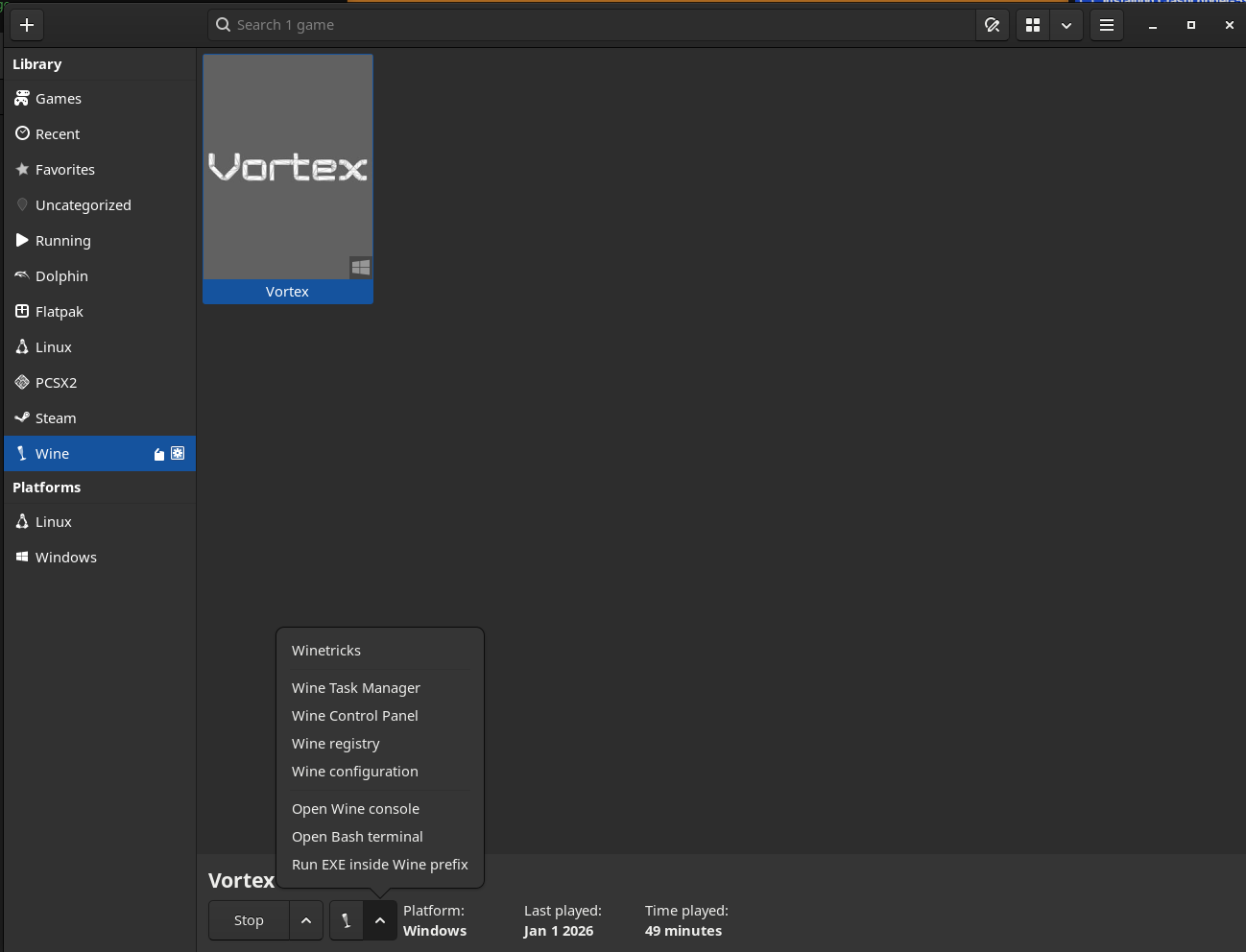
- Congratulations you have gotten to the menu that took me hours to find.
- Select "Drives"
- Enable "Show dot files"
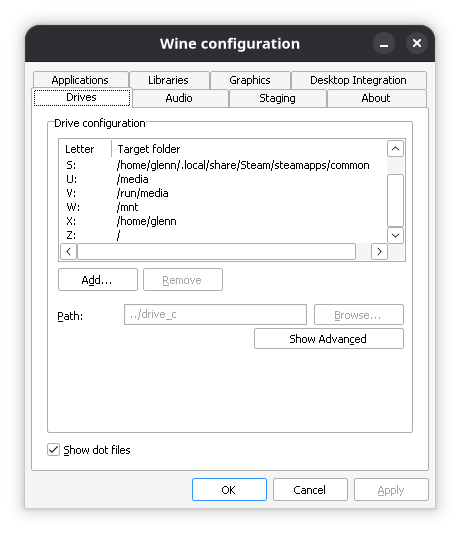
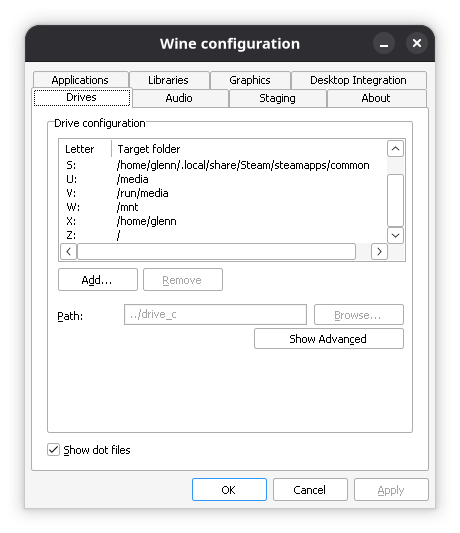
Now the big fun one. I also added a "S" drive in there you can see that points DIRECTLY to my steam library on my primary drive. This is good. Do this. Much easier to access.
Vortex Config
We ain't done yet. There is one more step we need to take that will allow Vortex to actually do things.
- Open Vortex
- Click Settings
- Click "Vortex" at the top
- Select "Shared" in Multi-User mode
For whatever reason, Vortex won't actually copy files to the directories without this being enabled. Not sure what it does, but I was told to do it so you should do it too. This WILL remove all your profiles and downloads too.
From there, you should be good to mod! Please test it first make sure it works before commiting to a large mod pack!