
Apple Shortcuts: The Ultimate solution for webhooks
I love Apple Shortcuts
It does need some TLC from Apple if I am being honest. There are some bugs and glitches with the interface itself, but for the most part, its solid to work with. Very similar to N8N but less robust.
Regardless, I use Apple Shortcuts to submit the URL, and retrieve the shared URL from Zipline. Its become incredibly cool and super easy to use.
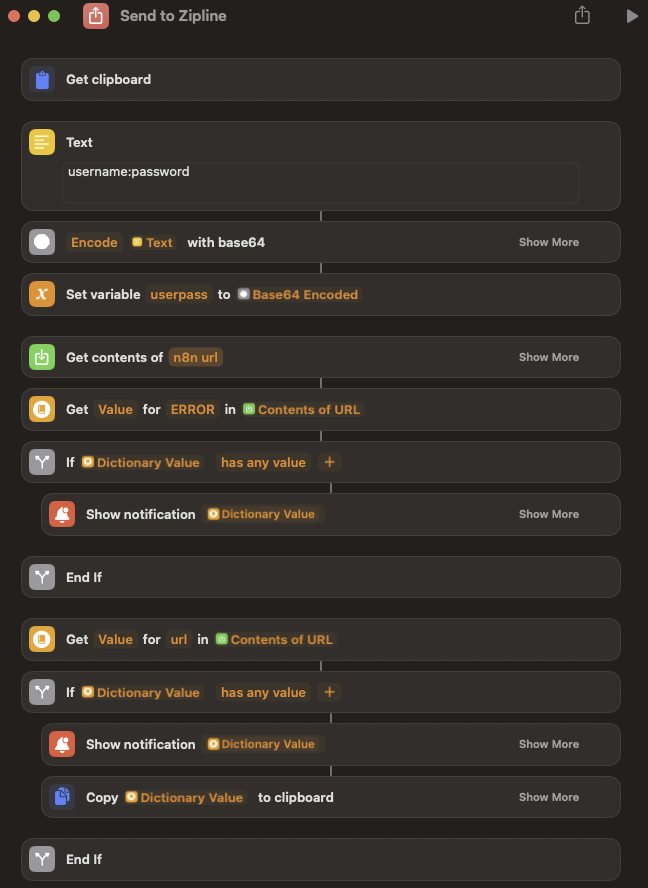
The Shortcut itself looks terrible but isn't actually to bad. Good portion of it is just logic. But I will go over the sections of the Shortcut and how they work!
The Clipboard

> Get Clipboard is stupid cool. The idea is that I simply copy the URL in question into my clipboard, and then run the shortcut. The shortcut will pull that URL from my clipboard and use that in the webhook to Zipline
Submitting the URL
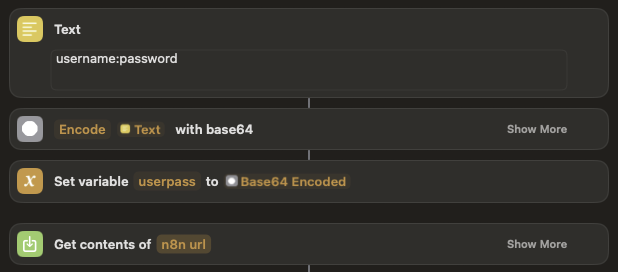
This next step is a bit complicated. But it does work! Using the text box, we enter the username and password with a ":" between them. It then encodes the text with base64, and sets the variable. Then the "Get Contents" action POST's the URL to the webhook on N8N.
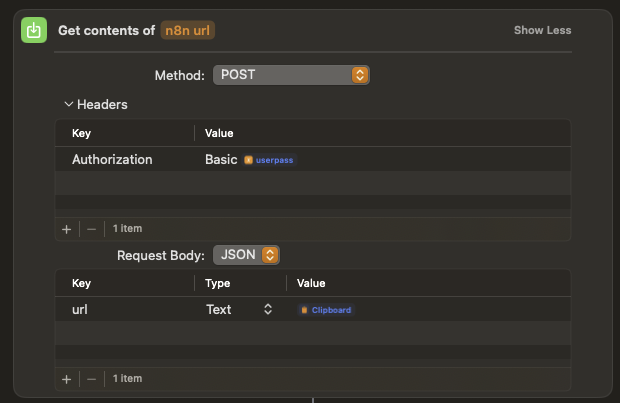
As you can see, the POST action simply uses password authentication with N8N and the body simply contains the url and the contents of the clipboard (url). This goes right to n8n for processing.
On Error
As previously discussed in the N8N information page, submitting the URL to YT-DLP can result in and error. The next section of the Shortcut works with that error if it exists.
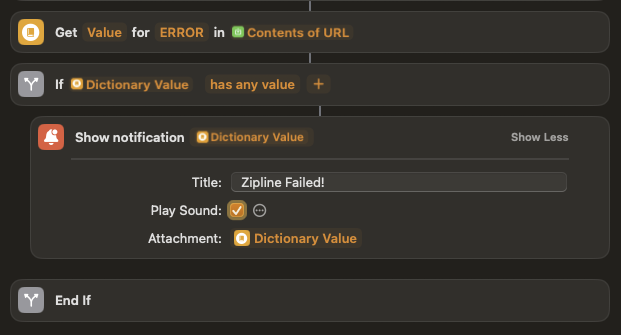
As you can see, the Shortcut attempts to pull the value from "ERROR" in the JSON response, and if it does exist, send a notification (with sound) indicating the failure, with the included error code. This allows the user to acknowledge there was an issue with the submission.
Processing the Response
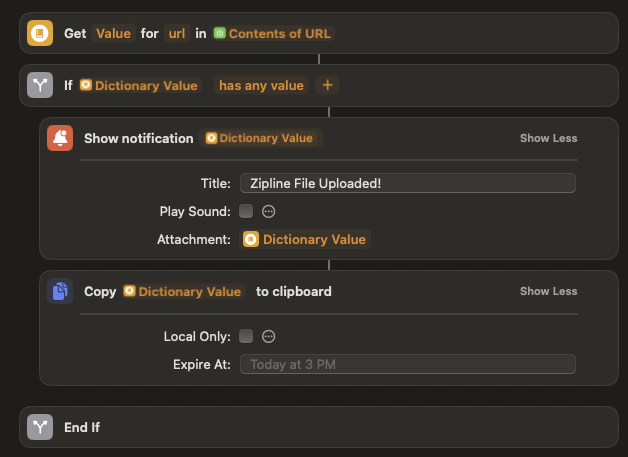
The next section does the same thing as the error check, but grabs the Zipline shared URL from the response, send a notification (without sound) with the URL, and also copies the URL to the clipboard so you can just paste.
Usage:
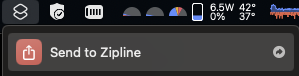
The way I have the shortcut setup is actually quite neat. I just copy the URL I want to download, click the Shortcut button in the menu bar of my mac, and then execute the shortcut. Once its finished, I have the sharable URL already in my clipboard and I can just paste it into nearly any chat.
No comments to display
No comments to display